Print books
How to Format a Book for KDP: Paperback and Ebook
Trim, gutter, bleed, fonts, matter, spine and ISBN, in the order KDP checks them, with the WriterDesk step that settles each one
WriterCaddy Team · November 3, 2026 · 6 min read
Priya finished a 74,000-word thriller and wanted it on Amazon as a paperback and a Kindle book in the same week. Her first upload came back with a note about margins, and the second with a note about fonts. Learning how to format a book for KDP is mostly learning which settings Amazon checks, and in what order.
Quick answer: Pick a KDP trim size first, then set the inside margin (gutter) from your page count: 0.375 in up to 150 pages, rising to 0.875 in past 700. Use no bleed unless art runs to the page edge, embed every font at 7 pt or larger, and upload a PDF for the paperback and an EPUB for the Kindle edition.
The rest of this guide takes each setting in turn. Where a number comes from Amazon, it comes from KDP's own help pages as of late 2026, and the page is linked so you can confirm it before you upload.
Step 1: Choose the trim size
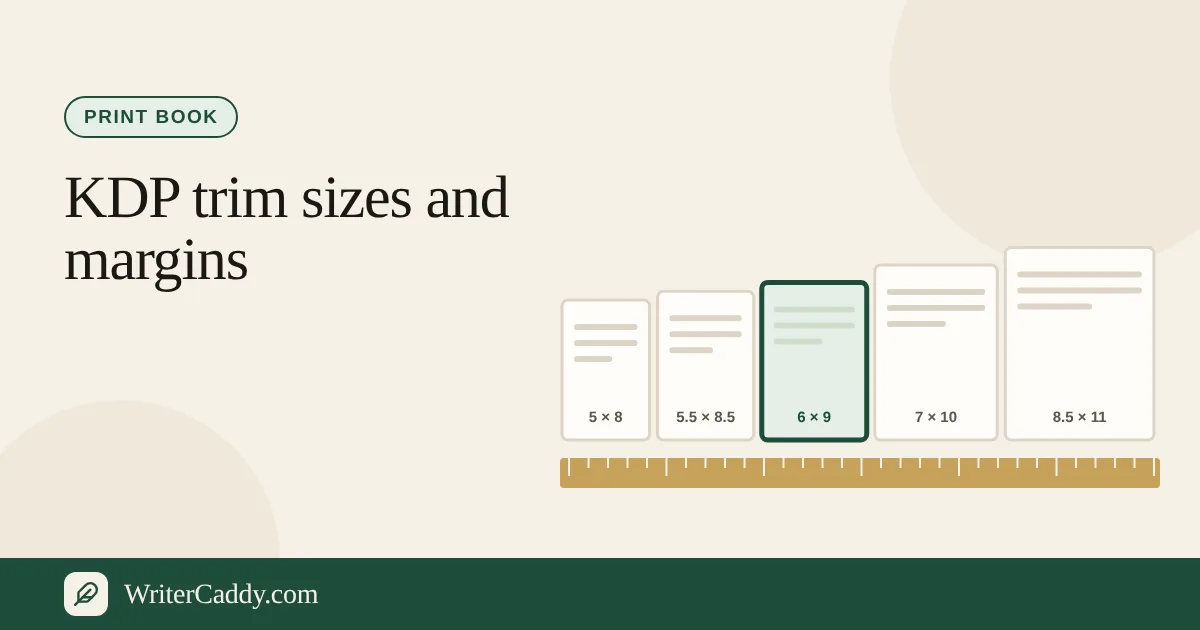
The trim is the finished page size, and every other number depends on it. Most novels on KDP use 5 × 8, 5.25 × 8, 5.5 × 8.5 or 6 × 9 inches. Nonfiction and workbooks go larger, to 7 × 10 or 8.5 × 11. KDP's trim size page lists every size and its page limits.
On the desk, open Choose the trim size with Amazon KDP & Audible as the house. The list is KDP's own sixteen paperback trims, grouped by the kind of book. Our guide to KDP trim sizes and margins goes through which genre uses which size.
Step 2: Set margins and the gutter
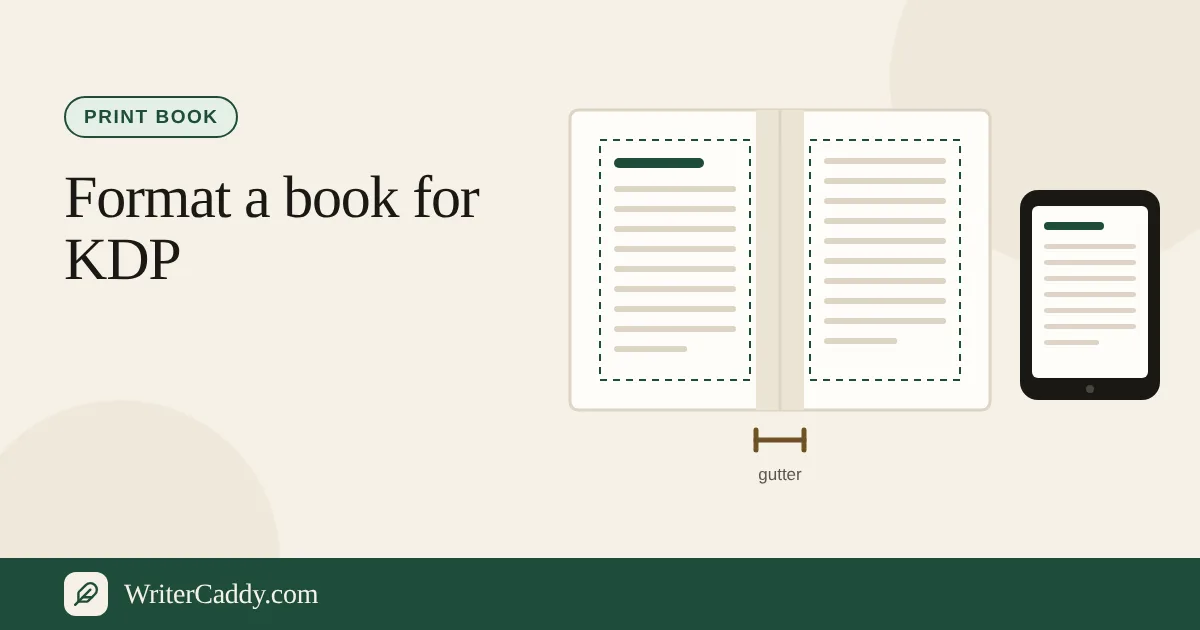
KDP sets a minimum inside margin, the gutter, that grows with the page count, so the words never vanish into the binding. The outside, top and bottom margins have one minimum each, which depends on bleed.
| Page count | Inside (gutter) | Outside, no bleed | Outside, with bleed |
|---|---|---|---|
| 24 to 150 | 0.375 in | 0.25 in | 0.375 in |
| 151 to 300 | 0.5 in | 0.25 in | 0.375 in |
| 301 to 500 | 0.625 in | 0.25 in | 0.375 in |
| 501 to 700 | 0.75 in | 0.25 in | 0.375 in |
| 701 to 828 | 0.875 in | 0.25 in | 0.375 in |
These are floors, not targets. A novel at the bare minimum looks cramped, so most designers leave 0.5 to 0.75 inch on the outside and add a little to the gutter. The House step on the desk shows KDP's rule in one line: the inside margin "grows with the page count."
Step 3: Bleed or no bleed
Bleed means an image or a colour runs off the edge of the page. KDP asks for 0.125 inch extra on the top, bottom and outside edge. A 6 × 9 book with bleed is therefore laid out at 6.125 × 9.25 inches.
A novel with text only should use no bleed. Choose bleed when a photo, map or background touches the trim, and remember two KDP rules. If one page bleeds, the whole interior must be set up with bleed. And a bleed interior must be uploaded as a PDF.
Step 4: Fonts, size and images
KDP's font rules are short. Text must be 7 point or larger, and every font must be embedded in the file. Fonts that will not embed, and fake bold or italic made by the software rather than a real font file, are common reasons for a rejection.
For body text, a serif at 10 to 12 point is the usual choice for a novel. Use one family for the body and at most one more for headings. Every image in the interior should be at least 300 DPI.
Step 5: Front matter and back matter
A KDP paperback normally opens with a title page and a copyright page, then any dedication, epigraph or contents. Chapter 1 starts on a right-hand page. The back holds acknowledgments, about the author and other books in the series.
On the desk, the Matter step switches each page on or off, and the title and copyright pages are built from the Intent and Facts steps. The front and back matter guide explains each page. For the Kindle edition, many authors move long front matter to the back, so the free sample reaches the story sooner.
Step 6: Page count and the spine
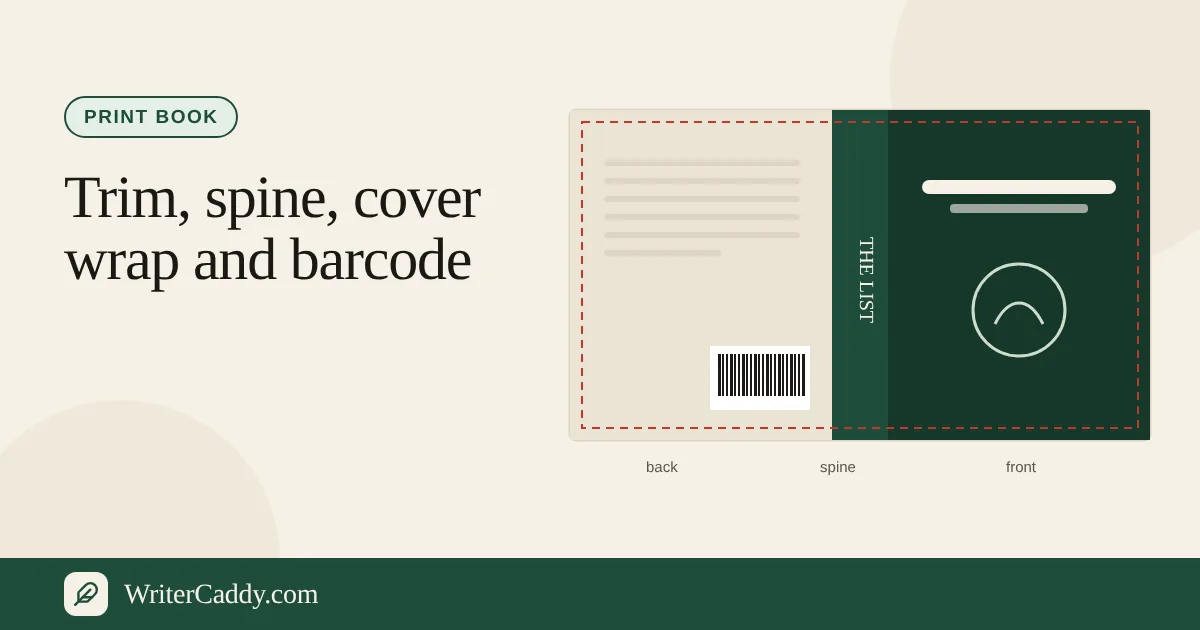
A KDP paperback must run at least 24 pages. The top limit depends on trim and paper; it is 828 pages for black ink on white paper at the common novel sizes. Spine width comes from the page count and paper, and KDP only allows text on the spine once a book passes about 79 pages.
The desk estimates pages at 250 words each and works out a spine on white paper. You see both on the Check step. Treat it as a planning figure and confirm the final width with KDP's cover calculator.
Step 7: Choose your ISBN
KDP's ISBN page sets the rules. A paperback needs an ISBN. A Kindle ebook does not; Amazon gives it an ASIN instead.
- Free KDP ISBN. It costs nothing, but it works only on KDP, and the imprint shows as "Independently published."
- Your own ISBN. Buy it from your country's ISBN agency (Bowker in the US). The title, author and imprint in KDP must match the agency's record, or KDP will not publish.
- One number per format. Paperback, hardcover and ebook each need their own.
On the desk, type the number in Add the ISBN. With 13 digits the desk checks the last digit and can draw the barcode on the back cover.
Step 8: Build the files
The Kindle edition is the simple half. KDP accepts EPUB, Word and KPF files, and its cover should be a JPEG or TIFF, ideally 2,560 × 1,600 pixels. On the desk, the Check step builds an EPUB 3 with the cover, contents and chapters. Download Watermarked EPUB to proof it, then Clean EPUB to upload.
The paperback interior is the part the desk does not make for a prose book. It gives you a Clean Word file in standard manuscript format, which is a letter-size page with 1-inch margins, not a KDP trim. Pour that text into KDP's free manuscript template for your trim, or another layout tool, then export a PDF with fonts embedded.
How to format a book for KDP on the WriterDesk
| KDP setting | Where it lives on the desk |
|---|---|
| Trim | House step, trim list |
| Margin rule | House step, KDP's margin line |
| Front and back matter | Matter step |
| Page and spine estimate | Check step, Length line |
| ISBN and barcode | Facts step |
| Ebook file | Check step, EPUB downloads |
| Paperback interior PDF | Not made; use KDP's template |
The print walkthrough shows the sample novel going through these screens at 6 × 9. Clean downloads come with the WriterCaddy plan, $29.99 a month after a 7-day free trial (downloads during the trial are watermarked); see Pricing.
Common reasons KDP rejects a file
- Text inside the margin. Usually a gutter set for a shorter book.
- Bleed set wrongly. A page with art at the edge but no bleed, or a bleed file uploaded at plain trim size.
- Fonts not embedded. Check the PDF's font list before you upload.
- Too many blank pages. KDP allows no more than 4 blank pages in a row at the start or middle, and 10 at the end.
- Details that do not match. The title and author on the cover must match what you typed into KDP.
- Leftover template text. Placeholder words or crop marks left in the file.
KDP's paperback formatting checklist lists the rest.
Start on the WriterDesk
Open the WriterDesk, choose Amazon KDP & Audible and a trim, and let the Check step tell you what is still missing before you go to KDP.
Which part of KDP formatting has slowed you down most: margins, fonts or the ISBN? Write to us at [email protected].
Try it on your own book
The sample books on the desk show every step before you start one of your own.