Ebooks
How to Make an EPUB from a Word Document
Clean the styles, let headings become the contents, add the cover and the facts, validate the file, and know which shops take it
WriterCaddy Team · November 3, 2026 · 6 min read
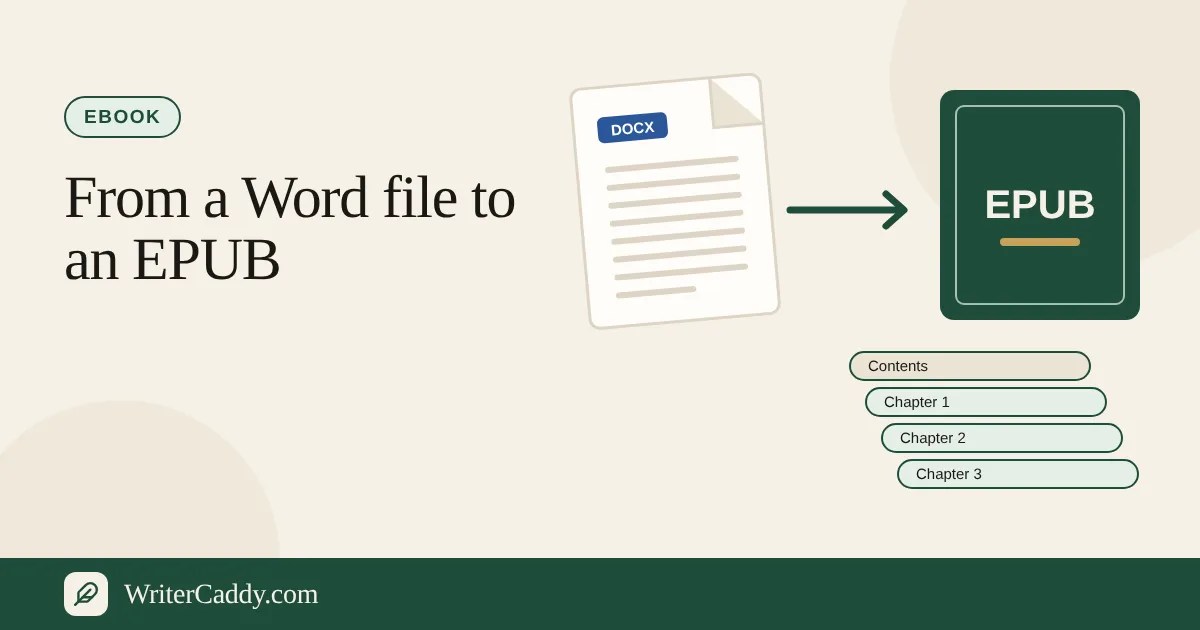
Tom wrote his memoir in Word over four years. When he was ready to sell it as an ebook, every shop asked for an EPUB, and his file had three kinds of heading, two fonts and a lot of manual spacing. Learning how to make an EPUB from a Word document is mostly a matter of cleaning that file first, then letting a tool build the parts a reader's device needs.
Quick answer: Clean the Word file so every chapter title uses the Heading 1 style and the body uses one plain style. Bring it into an EPUB tool that turns those headings into chapters and a contents list, add the cover, title, author and language, export EPUB 3, and run it through EPUBCheck before you upload.
What an EPUB is
An EPUB is a zip file of small web pages, one per chapter or section, plus a list of the files, a contents list and the book's metadata. A reader's device opens it and lays out the text to fit the screen. That is why an EPUB has no fixed page numbers: the reader chooses the font size and the device makes the pages.
EPUB 3 is the current version, and the one to aim for at Apple Books, Kobo and Google Play Books. Amazon KDP takes an EPUB too, alongside Word and its own KPF format, according to KDP's list of ebook formats.
Clean the Word document first
Most conversion problems start in the Word file. Fix these before you convert:
- Use real heading styles. Give every chapter title Heading 1. A bold, enlarged Normal paragraph looks the same to you but not to a converter.
- One body style. Select the text and clear the stray fonts and sizes. The reader's device will choose its own font anyway.
- No spacing tricks. Remove empty paragraphs used as spacers, tabs used as indents, and manual page breaks between paragraphs.
- Scene breaks as text. Use a line such as
* * *between scenes, not a run of blank lines that a device will collapse. - No headers, footers or page numbers. An ebook has none of them.
Headings become the table of contents
An EPUB's contents list, called the navigation document in EPUB 3, is built from the chapter headings. If every chapter starts with a real heading, the converter can split the book at those points and list each one. If it does not, you get one giant chapter and a contents list with one line.
On the WriterDesk, Bring a manuscript on the Chapters step reads a .docx and starts a new chapter at a Word heading style, or at a line that begins with Chapter, Prologue or Epilogue. A line that starts with Part sets the part for the chapters after it. You see a summary of what was found before anything replaces your chapters. The import guide covers the details.
Images and styling
Pictures and bold or italic text need a second look, and it helps to know what the desk keeps. The import reads words and paragraphs, not styling, so italics, bold and pictures in the Word file do not come across. Once the chapters are on the desk, the chapter editor has bold, italic, underline, lists, tables, a scene break and an Image button, and all of those carry into the EPUB.
Read each chapter after import and put back the italics that matter, such as book titles, foreign words and inner thoughts. Keep pictures to the ones the book needs, and use the Describe a picture tool or your own words for alt text.
The cover and the metadata
A shop shows your cover and reads your metadata before anyone opens the book. KDP's ebook cover guidance asks for a JPEG or TIFF, ideally 2,560 × 1,600 pixels, in RGB. Most shops also want the cover uploaded separately, even when it is inside the EPUB.
On the desk, the front image from the Cover step becomes the EPUB's cover page and its cover image. The EPUB's metadata is filled from the steps you already completed:
| In the EPUB | Where it comes from on the desk |
|---|---|
| Title and subtitle | Intent step |
| Author, publisher, rights, year | Facts step |
| Language | Facts step, "Language" |
| Description | The store description or back cover blurb |
| Subjects | "Category" and "Keywords" on Facts |
| Identifier | The ebook ISBN, then the print ISBN, then a generated id |
If the book has a print edition, give the ebook its own number in Add the ebook ISBN. Shops do not take one ISBN for two formats.
How to make an EPUB from a Word document on the WriterDesk
- On House, choose the house and "Ebook only" or "Print and ebook", then "Reflowable" for a text book.
- On Chapters, use "Bring the manuscript" and choose your .docx. Check the summary, then add or replace.
- Read each chapter and restore italics, pictures and scene breaks with the editor.
- On Matter, switch on the pages you need. The title, copyright and contents pages are built for you.
- On Cover, add the front image and the store description.
- On Facts, set the author, language, category, keywords and ISBN if you have one.
- On Check, download "Watermarked EPUB" and open it on a phone or e-reader. When it reads well, take "Clean EPUB".
The ebook walkthrough shows the same path on real screens. A clean file comes with the WriterCaddy plan, $29.99 a month after a 7-day free trial; during the trial the EPUB stays watermarked. See Pricing.
Validate the EPUB
EPUBCheck is the free, open-source validator maintained by the W3C, and it is the same test many shops run on an upload. Download it from the W3C's EPUBCheck page and run it on your file, or use a tool that wraps it. Fix every error; warnings are worth reading too.
Validation does not tell you whether the book reads well. Open the file in Apple Books, Kobo's app or Amazon's free Kindle Previewer, and page through the contents list, the first chapter and the last.
Where to upload the EPUB
| Shop | What to know |
|---|---|
| Amazon KDP | Takes EPUB; an ISBN is optional, Amazon assigns an ASIN |
| Apple Books | Takes EPUB; an ISBN is optional |
| Kobo Writing Life | Takes EPUB; Kobo can assign its own identifier |
| Google Play Books | Takes EPUB through its Partner Center |
| Draft2Digital | Takes EPUB and sends it to many shops at once |
Each shop shows its own preview after upload. Check it before you press publish, because that preview is what a buyer will see.
Common mistakes
- Fake headings. Bold Normal text instead of Heading 1, so chapters do not split.
- Spacing by Enter key. Blank paragraphs that vanish or pile up on a device.
- Lost italics. Not rereading the book after conversion.
- A missing description. On the desk, Check flags an empty store description as Look.
- Skipping validation. An upload error is slower to fix than an EPUBCheck report.
Start on the WriterDesk
Open the WriterDesk, bring your .docx onto the Chapters step, and download a watermarked EPUB to see how your headings became chapters.
What is the messiest part of your Word file right now: headings, spacing or pictures? Write to us at [email protected].
Try it on your own book
The sample books on the desk show every step before you start one of your own.