Ebooks
Turn Your Manuscript into an EPUB Ebook
One section per chapter, a contents list a device can read, the cover and pictures packed inside, and true fixed layout for a picture book
WriterCaddy Team · October 17, 2026 · updated November 3, 2026 · 6 min read
Marcus finished a 41,000-word fantasy novella on a Sunday night and wanted it on Kobo and Apple Books before the week was out. He had no print plans and no patience for page numbers. What he needed was one tidy EPUB, a description a shop would accept, and the confidence that the chapters would arrive in the right order.
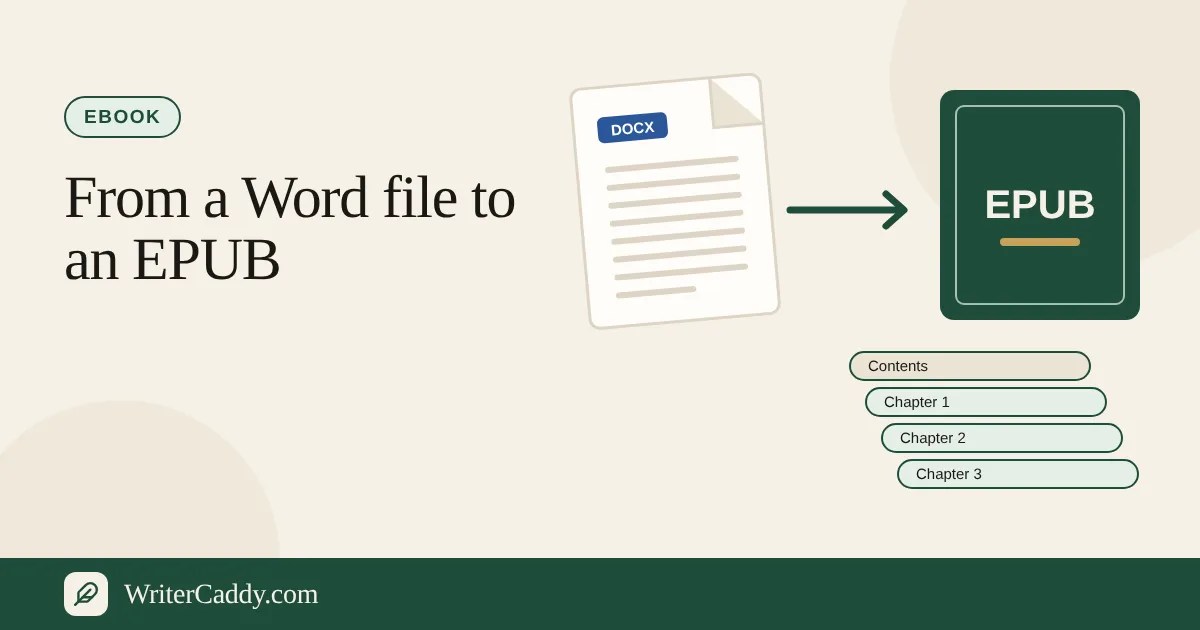
The WriterDesk builds that EPUB from the same chapters you write on the desk. Pick an ebook path on the House step, fill the book in, and the Check step gives you a watermarked EPUB for free and a clean one with the paid WriterCaddy plan. The file is EPUB 3, with your cover at the front, one section for each chapter and each page of matter you turned on, and the pictures you placed in the chapters.
Pick the ebook path
On the House step, the buttons depend on the house you choose. A print house such as Amazon KDP, IngramSpark, Barnes & Noble Press, Lulu or Custom format offers "Print and ebook", "Print only" and "Ebook only". An ebook-only house, such as Draft2Digital, Apple Books or Kobo Writing Life, simply offers "Ebook", beside the "Read-aloud" button every house shows for a text book. Google Play Books offers Ebook and Audiobook. If you are still deciding where the book goes, the house guide walks through each option.
The ebook block on House then asks one question: "Reflowable" or "Fixed layout". A novel is reflowable, which means the reader's device makes the page breaks and chapter 1 is where reading starts. A picture book is usually fixed-layout, one screen to a page. Choosing picture or comic as the kind switches the choice to fixed layout automatically.
The file follows the kind of book. A picture book or a comic is written as true fixed layout (EPUB 3 pre-paginated): one screen for each page, the picture edge to edge, and a spread split across two facing screens. A comic set to read right to left keeps that direction. A novel, a memoir or a handbook is written reflowable, so for a text book the Fixed layout button changes the Check line, not the file.
What goes into the file
When you download a reflowable EPUB, the desk assembles it in this order:
- The cover, from the "Cover image" on the Cover step, as the first screen. The shop's library thumbnail reads it too.
- A title page and a copyright page, built from what you typed on Intent and Facts.
- The contents.
- The front matter you turned on, each page as its own section with its label as the heading.
- Your chapters in their order on the desk. A part name gets a divider page of its own, and the contents list nests that part's chapters under it.
- The back matter you turned on, again one section each.
The contents list is an EPUB 3 navigation document, so the reader's device can jump between sections. The language you chose on Facts is written into the file as a language tag, such as "en" for English. The book's identifier is the ebook ISBN if you entered one, the print ISBN otherwise, or an id made for the book.
Move a chapter "Earlier" or "Later" on the Chapters step and the EPUB order moves with it. That is the quiet advantage of building the ebook from the desk: there is no second copy of the book to keep in step.
The cover and the pictures
The cover goes inside the EPUB. If the Cover step holds a front image, the file carries it as its cover. Most shops still ask for the cover as a separate upload as well, and the desk's ebook note describes what they want: one front image, JPEG, RGB, ideally 2560 × 1600, with no spine and no barcode. Keep that file ready next to the EPUB.
Pictures placed in a chapter come along. A picture you add with the chapter editor's Image button is packed into the EPUB where it sits in the text, with its alt text for screen readers. JPEG and PNG go in as they are; other formats are redrawn as PNG. A picture the browser cannot read is skipped rather than breaking the file, so open the watermarked EPUB and look before you take the clean one.
Step by step: from chapters to EPUB
- On House, choose your house and an ebook path, then "Reflowable" for a novel.
- On Intent, fill in the "Title", "Subtitle" and "Who it is for".
- On Matter, switch on only the pages this ebook needs. The matter guide explains each one.
- On Chapters, write or bring in the text, one chapter at a time, with a "Part" name where it helps.
- On Cover, add the front "Cover image" and the words the shop will show beside it. On a print and ebook path, type them in "Back cover blurb". On an ebook-only path, the Ebook cover panel has a "Store description" field for the same text.
- On Facts, set the "Language", the "Keywords", the "Category" and, if you have one, the "Ebook ISBN, if it differs".
- On Check, press "Watermarked EPUB" first and open it on your own device. When it reads well, take the "Clean EPUB".
The ebook lines on the Check step
The Check step marks each line Ready, Look or Needed. Only Needed blocks a clean file. These are the lines that are specific to ebooks:
| Line | What it asks for |
|---|---|
| Store description | A blurb. Without one it says "An ebook shop needs a description." |
| Keywords | One to seven. More than seven shows Look, because "Amazon keeps seven keywords." |
| Ebook layout | Simply states Reflowable or Fixed. |
| Ebook ISBN | On a print and ebook path, Look if the ebook number matches the print number. |
The ISBN line follows your house. Draft2Digital and Apple Books both call the ISBN optional in their lines on the desk, and Kobo's tells you to leave it blank because Kobo "can assign its own identifier." If the same book also has a print edition, the desk reminds you that "shops will not take the same number for both."
Preview first, then the clean file
The watermarked EPUB is free and needs no account. Right after the cover comes a page titled Preview, so nobody mistakes it for the finished book. Use it to check chapter order, part dividers and the contents list on a phone or e-reader.
The clean EPUB has no Preview page, and with the paid plan you can take it again after every last fix. The trial and the plan are explained in the guide to clean files, and current prices are on Pricing.
The handoff that rides along
Next to the EPUB sits another file, the handoff. It is an ONIX 3.0 record: the metadata a distributor reads, with the title, subtitle, series, author, language, ISBN and a description. Some houses never ask for it; others are glad of it. It follows the same rule as the EPUB: free when watermarked, clean with the paid plan.
Common mistakes
- Using one ISBN for print and ebook. Give the ebook its own number or leave it blank where the house allows.
- Leaving the blurb for last. On an ebook path it is the store description, and Check will flag it.
- Packing keywords. Seven well-chosen phrases beat fifteen that will be cut.
- Forgetting the cover. Add it on the Cover step so the EPUB carries it, and keep the 2560 × 1600 JPEG for the shop's own cover upload.
Your next step
Open the WriterDesk, load the sample novel, and download its watermarked EPUB to see the structure before you build your own. Then bring your chapters in and repeat the steps above.
What kind of book are you turning into an ebook first? Write to us at [email protected].
Try it on your own book
The sample books on the desk show every step before you start one of your own.