Getting started
Bring a Finished Draft onto the WriterDesk Without Retyping It
Drop in a .docx, .txt, .md or .rtf and let each step lift the part it needs: chapters, matter, cover copy or copyright facts
WriterCaddy Team · October 17, 2026 · updated November 3, 2026 · 5 min read
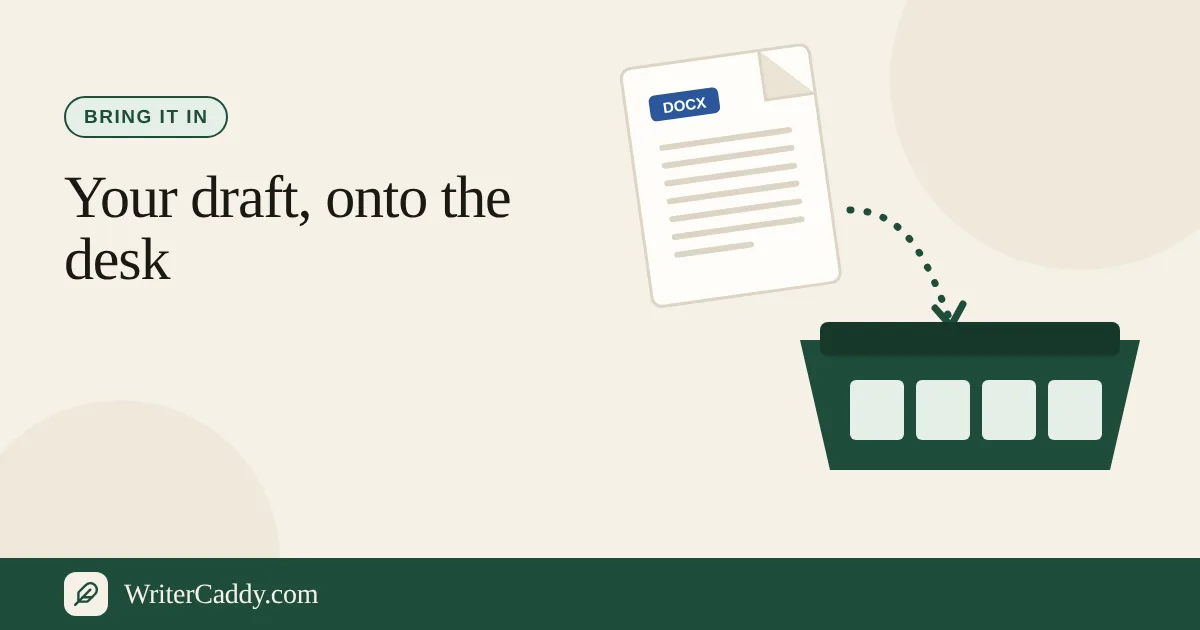
Dolores finished her memoir in Word three years ago. It has a prologue, nineteen chapters, an epilogue, a dedication to her sister and a copyright page she copied from a library book. The idea of pasting all of that into a web form one chapter at a time made her close the laptop twice.
She does not have to. Every main step of the WriterDesk has a box that reads a file you already have and lifts out the part that step cares about. On Chapters it is the chapters. On Matter it is the dedication and acknowledgments. On Facts it is the ISBN, the year and the rights line. You review what it found, then click to keep it.
What the desk can read
The import boxes accept .docx, .txt, .md and .rtf. Two common formats are refused, with a clear message: "Bring a .docx, .txt, .md, or .rtf file. A PDF or an old .doc file is not read here." If your manuscript only exists as a PDF or an old Word 97 file, open it in your word processor and save a .docx first.
Most boxes also have a paste area labelled "Or paste it here" and a button, "Read what I pasted". Pasted text goes through the same reader as a file, which helps when your draft lives in Google Docs, Scrivener or an email. The Check step's box is the exception: it takes a file only.
How chapters are found
The Chapters box is the one most writers want, and it splits a manuscript on headings it recognizes:
- Lines that start with Chapter, Chap., Prologue or Epilogue.
- Word heading styles, so a chapter title formatted as Heading 1 counts even if it is just a name like "The River", but only after a Chapter, Prologue or Epilogue heading has opened the first chapter. A file whose headings are all plain names never starts a chapter and stays one long chapter. In a Markdown file, a line starting with # follows the same rule.
- Headings that start with Part become part names, the dividers that group chapters on the desk and in the EPUB.
You can also bring several files at once. A file with no headings of its own is given its file name as a heading, so each file can become one chapter, which suits writers who keep a document per chapter. The same opening rule applies: name the first file something like "Chapter 1", or start it with a Chapter heading, or the set comes in as a single chapter. The box lists what it found before anything changes in your book.
Importing, step by step
- Sign in, start a book, and open the Chapters tab on the WriterDesk.
- In the box titled "Bring the manuscript", click "Choose a file" and pick your .docx (or several files).
- Read the list of chapters it found. Check the count and the titles against your table of contents.
- If the book is empty, click "Use this". If it already has chapters, choose "Add after the chapters here" to append, or "Replace the chapters" to swap them out.
- Look for the confirmation: "Kept. Edit it below. Anything this step does not cover is still yours to finish."
- Repeat on Matter and Facts with the same file to lift the pages around the chapters. The Cover box takes only an image, a .txt or .md file, or pasted text, so paste the back-cover words there rather than bringing the .docx.
if the split looks wrong, fix the headings in Word so each chapter starts with "Chapter" or uses a heading style, save, and bring the file again.
The other boxes, step by step
Each box has its own title and its own job:
| Step | Box title | What it lifts |
|---|---|---|
| House | "Bring the decision you already made" | House name, a size like 6 x 9, and paperback, ebook or audiobook (.txt or .md) |
| Intent | "Bring the pitch or the notes" | The intent text, plus a title and author from a "Title by Name" line |
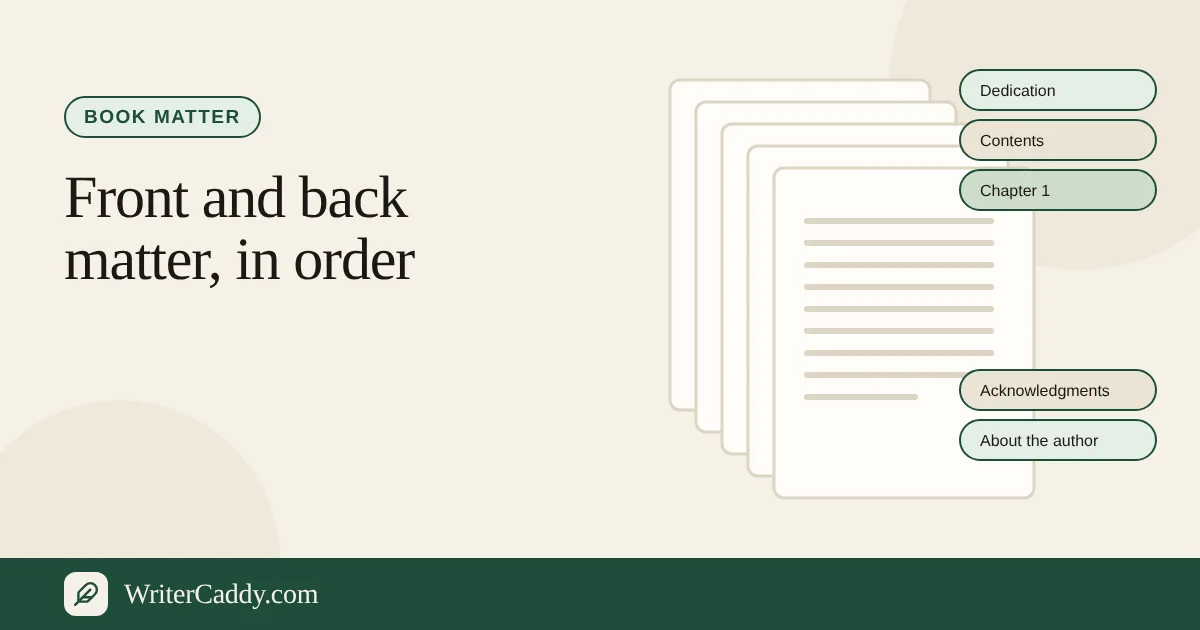
| Matter | "Bring the pages around the chapters" | Sections whose headings match, such as Dedication, Preface, Acknowledgments, Glossary or Index |
| Cover | "Bring the cover you already have" | An image as the front cover; from text, a headline, praise, author bio and blurb |
| Facts | "Bring the copyright page" | A 10- or 13-digit ISBN, the year, "Copyright © Year Name", "Published by", website, language |
| Check | "Bring the manuscript to check" | Chapters, named matter and copyright facts in one pass |
Dolores's file had headings named "Dedication" and "Acknowledgments", so the Matter box turned both on with her text inside. Her copyright page gave Facts the year and the rights holder. The front and back matter guide lists every section name the box recognizes and where each one lands.
What does not come across
The import reads words, not layout. Fonts, margins, page numbers and headers from your Word file are dropped, because the desk builds those from the house and trim you chose. Pictures inside chapter text are not lifted by the import either; add them on the desk with the chapter editor's Image button. The EPUB and the Word file carry those pictures; only the plain-text manuscript leaves them out.
A heading that sits above your first chapter, such as the book's title on page one, is treated as a title rather than a chapter. If a file holds no recognizable chapter heading at all, the box tells you so and keeps the whole text as one chapter, which you can then split by hand with the "+ Chapter" button.
The import also will not invent anything. If a box finds nothing it says "Nothing in that file matched this step." and leaves your book as it was.
Common mistakes when importing
- Bringing a PDF. It will be refused. Export a .docx from the original document instead.
- Chapters titled only with numbers in plain text. A line that just says "7" is not recognized. Use "Chapter 7" or a heading style.
- Clicking "Replace the chapters" by habit. It swaps out every chapter on the desk. Use "Add after the chapters here" when you are adding new material.
- Expecting one box to fill every step. The Chapters box keeps chapters. Bring the same file to Matter and Facts for the rest, or use the Check box to do all three at once.
- Forgetting the front matter is still in chapter one. If your dedication sat above Chapter 1 without its own heading, it may ride along inside the first chapter. Move it to Matter by hand.
Where to go after the import
With the chapters in place, the desk's live preview fills with your real book, and the word counts and reading grade appear under each chapter. From there the walk-through of all seven tabs takes you to Check. If you want to hear the imported chapters read back before you edit, the Listen button guide shows how.
What format is your current draft in, and did the chapter split come out the way you expected? Write to us at [email protected].
Try it on your own book
The sample books on the desk show every step before you start one of your own.