Getting started
From Idea to a File a House Accepts: The WriterDesk Path
Seven steps, one live preview, and a clear line between the free watermarked copy and the clean file you send
WriterCaddy Team · October 17, 2026 · updated November 3, 2026 · 7 min read
Priya has a 58,000-word cozy mystery, a title she likes, and a folder of notes that grew sideways for two years. She knows the book is headed for Amazon KDP, maybe IngramSpark later, and she has no idea which of the hundred small decisions comes first. Trim size? ISBN? Where does the dedication go? Most writers in her spot stall not on the writing but on the order of everything around it.
The WriterDesk puts that order on rails. Seven tabs run left to right, House · Intent · Matter · Chapters · Cover · Facts · Check, and a live preview on the right redraws the book as you type. At the end you take a manuscript (plain text and Word), an EPUB and a publisher handoff file, plus a print interior PDF for a picture book or comic: watermarked for free, or clean with the WriterCaddy plan.
Why the steps run in this order
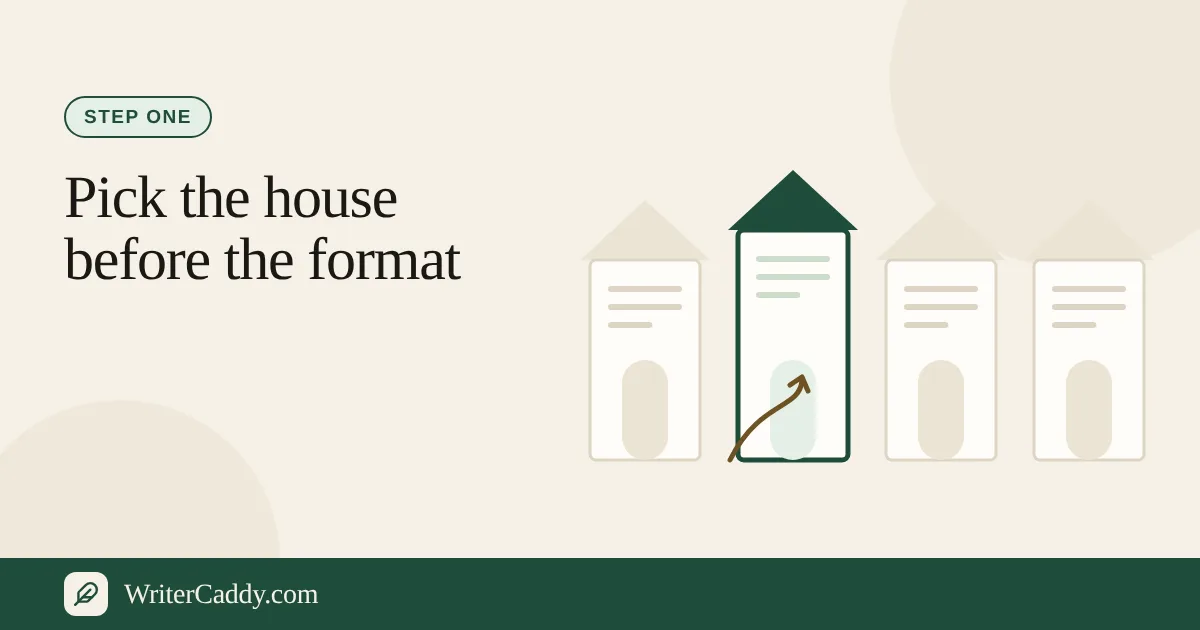
The first tab is the publishing house, not the chapters, and that is deliberate. The desk's own line on that step says it plainly: "The house comes first. Print, ebook, and audiobook do not ask for the same file, and every step after this one follows the path you pick here." Pick KDP and the trim list narrows to the sizes KDP prints. Pick Apple Books and print margins disappear because there is no print.
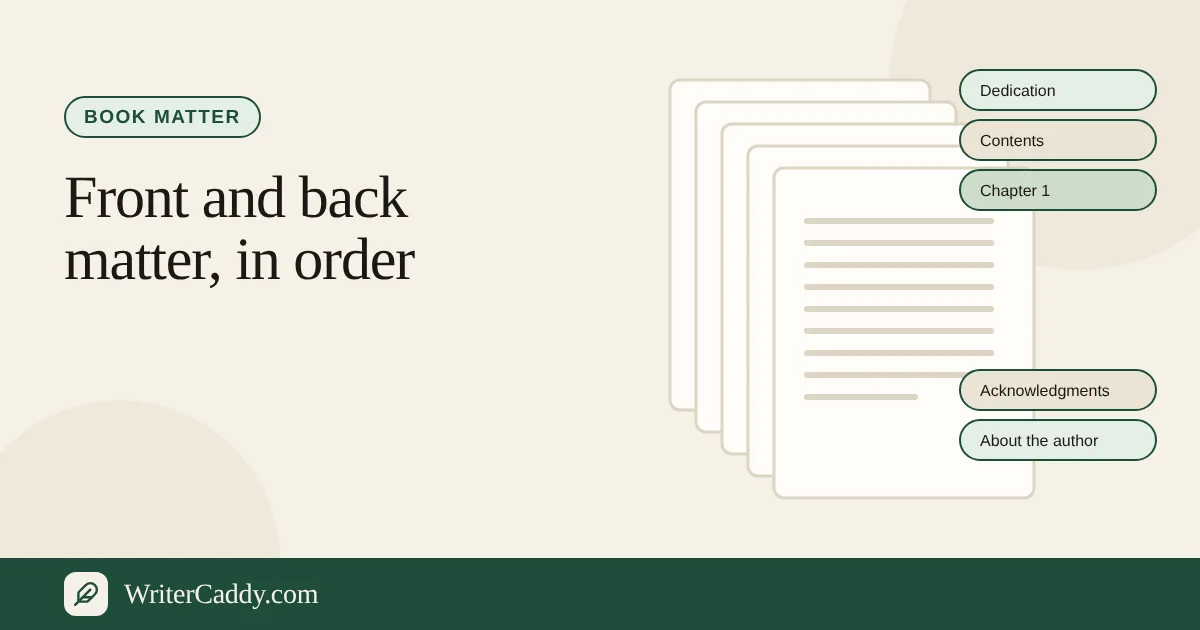
Intent comes next because the back cover, the description and the handoff are only allowed to repeat what you wrote there. Matter (the pages before and after the story) sits before Chapters so you decide early whether this book wants a dedication, a glossary or an "also by" page. Cover and Facts collect the things a house reads before it reads a word of your prose. Check is the gate.
If you want the reasoning behind the first tab in more depth, the guide to choosing a house first walks through every option the desk offers.
Walking the desk, tab by tab
Open the WriterDesk without signing in and it loads a sample novel, The Dragon Who Kept the List, already filled in. Every tab works, nothing saves, and the save label reads "Sample · not saved". It is the fastest way to see the whole path before committing your own book.
When you are ready, here is the route for a novel, handbook or pocket book:
- House. Choose the house, then the path: "Print and ebook", "Print only", "Ebook only", "Audiobook" or "Read-aloud", depending on what that house takes. With print on, pick the kind of book and a trim.
- Intent. Fill "Title", "Subtitle", "Series", "Who it is for" and "The intent", the sentence about what a reader should have when they close the book.
- Matter. Turn on only the front and back pages this book needs. Typing in a section switches it on.
- Chapters. Write or paste each chapter, with an optional "Part" name. The desk counts words per chapter, estimates a reading grade after about 40 words, and flags words you lean on.
- Cover. Add the front image and, for print, the spine choices and the back-cover copy. The full wrap draws above the step.
- Facts. Enter the author, ISBN, category, keywords, language, rights holder and a data-protection contact. These are typed once and reused everywhere.
- Check. Read the preflight list and take your files.
the "On this step" box on every tab explains what that screen feeds into. It is worth reading once per tab.
The live preview and what it is not
The right column redraws the book page by page in the proportions of your trim: cover, title page, copyright, contents, part pages, chapters with running heads, then the back cover. With an ebook in the path it adds the same book as a phone would reflow it.
That preview is a reading, not a press file. The desk says so itself: "The on-screen page is a watermarked reading, not a press PDF, and it does not embed a print font." For a novel, a handbook or a pocket book, the print files come from the house's own interior template, filled from the Word manuscript; what you take away is the text, the ebook and the metadata, with the layout decisions already made and checked.
A print picture book or comic is different. Its Check step makes a print interior PDF: a title page, a copyright page and one page for each picture, at your trim plus 0.125 inch of bleed on the outside, top and bottom, with a spread split across two facing pages. No book gets a cover PDF; make the cover with the house's cover template at the spine width it gives for your page count.
What leaves the desk at the end
On the Check tab there are two rows of buttons. For a novel, handbook or pocket book the free row is "Watermarked manuscript", "Watermarked Word file", "Watermarked EPUB" and "Watermarked handoff". The clean row drops the word watermarked and opens with the paid WriterCaddy plan. A picture book or comic has no manuscript or Word file; its rows offer the print interior when print is on, the EPUB when an ebook is in the path, and the handoff.
| File | What it is | Free version |
|---|---|---|
| Manuscript | Plain text (.txt): title block, front matter, parts, chapters, back matter | First line is a Preview note |
| Word file | .docx in standard manuscript format: Times New Roman 12 pt, double spaced, each chapter on a new page, with your pictures | Carries a Preview note |
| EPUB | EPUB 3 with the cover, one section per chapter and matter page, the chapter pictures and a contents list; fixed layout for a picture book or comic | Has an extra Preview page after the cover |
| Print interior | PDF for a print picture book or comic, with bleed | Watermarked |
| Handoff | ONIX 3.0 XML with title, author, language, ISBN and description | Description starts with "PREVIEW." |
Most shops still want the ebook cover as a separate upload as well, even though the EPUB carries it. The EPUB guide covers that in detail.
Clean files are unlimited once the WriterCaddy plan is paid; during its 7-day free trial they stay watermarked. The guide to previews and the plan has the details, and current prices are on Pricing. Any line marked "Needed" on Check blocks the clean buttons until it is cleared. "Look" lines never block.
Saving, the shelf, and starting your own book
Click "Start a new book" and the desk asks you to sign in, then hands you a blank book. From that moment it saves on its own less than a second after you stop typing, and the label switches between "Saving…" and "On your account". The book lives on your account, so the same draft opens on a laptop or a phone.
The "Shelf" button lists every book with its word count. You can keep up to 24, start another, or remove one with a two-click confirmation. Nothing in that shelf is a purchase; storing and editing the manuscript costs nothing and does not expire.
Common mistakes on a first pass
- Writing chapters before choosing the house. Changing the house later can change the path and the trims available. Settle it first.
- Expecting the sample to pass Check. The sample is short on purpose and shows "Needed" for length. A paperback usually wants at least 24 pages, about 6,000 words at the desk's 250 words a page.
- Typing the ISBN on the Cover tab. There is no field for it there. The barcode, ISBN and QR code come from Facts and are drawn on the cover wrap automatically, though the wrap only shows the QR code inside the barcode block, once a 13-digit ISBN is in.
- Leaving IngramSpark's ISBN blank. For that house only, a blank ISBN is a "Needed" line.
- Treating the preview as the printer's proof. The spine width is an estimate on white paper; your printer's template has the final measure.
Your next move
Open the sample, click through all seven tabs in order, and watch what the preview does at each one. Then start your own book and let the House tab make the first decision for you. If you already have a draft in Word, the guide to bringing a manuscript in saves you a lot of pasting.
Which house is your book headed for first, and is it print, ebook, or both? Write to us at [email protected].
Try it on your own book
The sample books on the desk show every step before you start one of your own.