Audiobooks
Make an Audiobook on the WriterDesk, Chapter by Chapter
Pick a narrator, set the credits and the names, and take home a ZIP of MP3s levelled for audiobook stores
WriterCaddy Team · October 17, 2026 · updated October 21, 2026 · 6 min read
Dana finished her cozy mystery in March: eleven chapters, a dedication to her late aunt, and a cast of villagers with names nobody can pronounce on the first try. Her readers keep asking for an audio edition. A studio quote for a human narrator came back at more than the book has earned so far, and a raw text-to-speech file would fail the first technical check any audiobook shop runs.
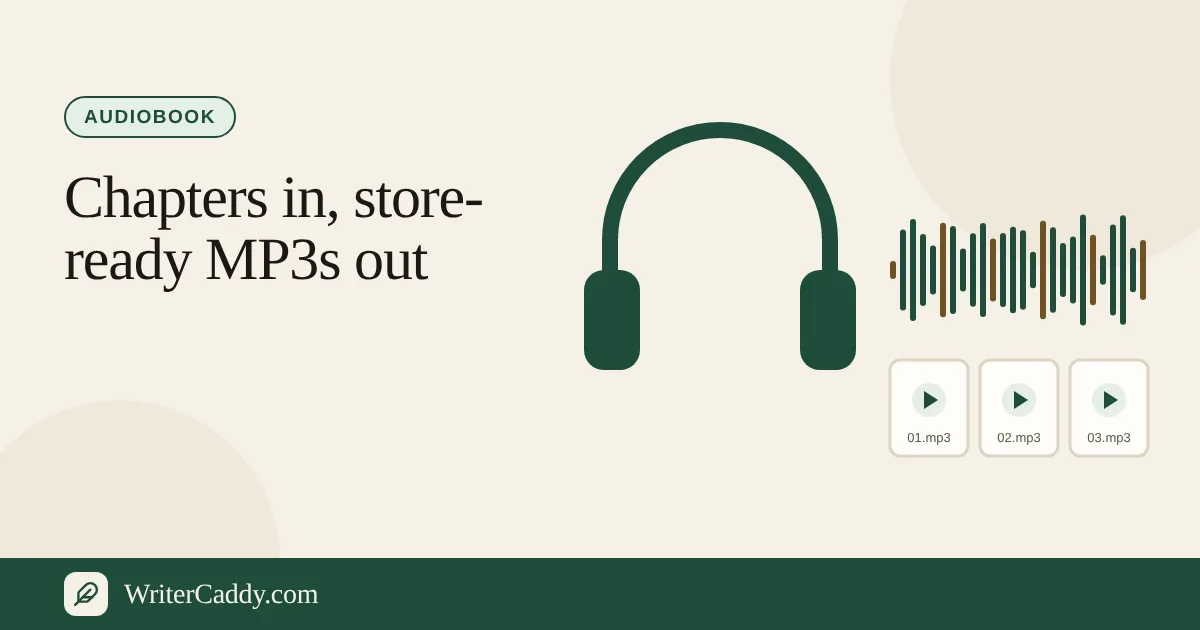
The WriterDesk has a path for exactly this. Set the target to Audiobook, choose a narrator style on the House step, and the Check step renders a ZIP: opening credits, one MP3 per chapter with the chapter title spoken first, any front or back pages you chose to have read, and closing credits. Each file is mastered at 44.1 kHz, 192 kbps, levelled for the stores.
Which houses take an audiobook
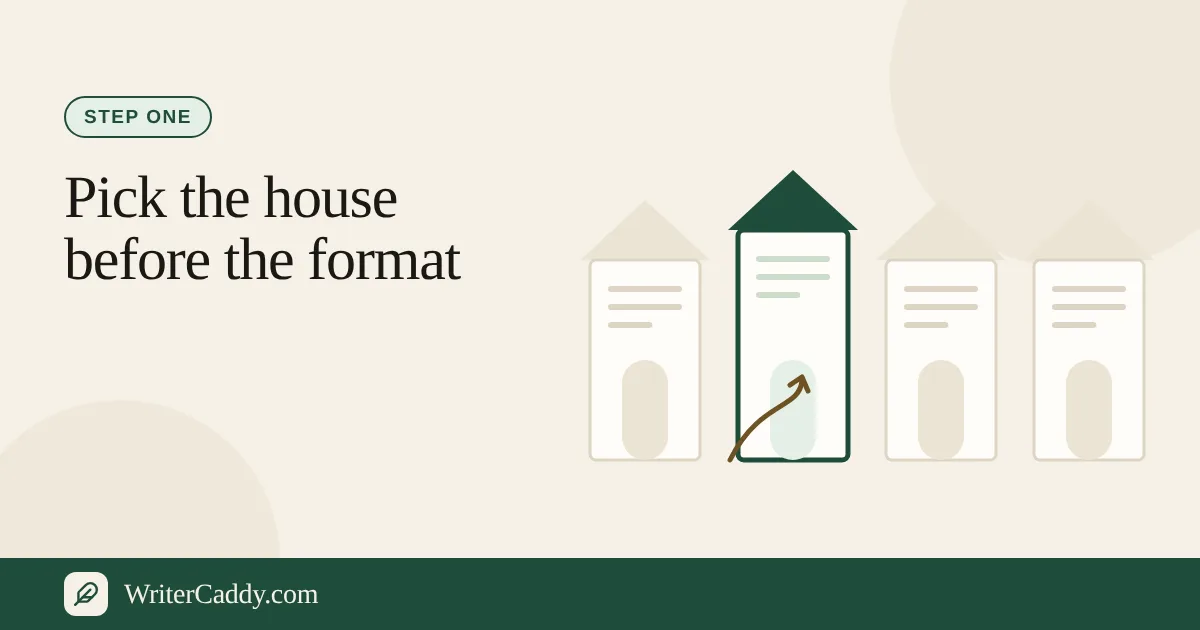
The House step decides whether the Audiobook button appears at all. Five of the houses on the desk take audio: Amazon KDP & Audible, ACX, Google Play Books, Spotify for Authors and INaudio. ACX, Spotify and INaudio are audio-only, so picking one of them switches the book to the audiobook path straight away.
One warning is worth reading twice. When the house is ACX or KDP and the voice is AI, the desk says: "A direct ACX upload still wants a human narrator unless ACX has authorized a synthetic voice. An AI reading can go to INaudio, Spotify, or Google." The Check step repeats it as a Look line called "ACX and a synthetic voice". It does not block the render; it asks you to know which door the files are for.
If you have not settled on a house yet, the guide to choosing your publishing house first walks through every option the desk offers.
Set up the voice and the credits
Once the target is Audiobook, the House step shows the AudioBench with an estimate such as "About 6 hours 40 minutes spoken, at a calm pace." That figure divides the words by 150 a minute, so a brisk narrator will come in shorter.
- On House, choose "AI voice" in the AudioBench.
- Pick a narrator style: Woman, Man, Older, Young, Adult, Child, Cartoon, Energetic or Calm. Calm is the default.
- Open Chapters. The panel "What the listener hears" sits above the chapter editor.
- Fill "Narrator’s name", or tick "The author is the narrator" if your name should be spoken.
- Choose an accent if you want one: American, British, Indian or Australian. Click it again to clear it.
- Leave "Opening credits" and "Closing credits" blank unless you need special wording. The desk builds the required lines, for example "This is The Lantern Shop. Written by Dana Reyes. Narrated by Dana Reyes."
- In "How to say the names", write one name a line, such as "Mirelle — mi-REL".
- On Matter, tick "Speak this aloud" on the pages a listener should hear.
Every chapter is announced in the form "Part one. Chapter 3. The bell tower." before its prose begins, so give your chapters real titles before you render.
The Facts step adds an "Audiobook listing" panel for the shop page: the narrator's name, a short narrator bio, a release date, a companion ebook ISBN or ASIN, an explicit flag, and the deal ("Wide", "ACX, not exclusive" or "ACX exclusive"). Those names should match the spoken credits word for word.
Render the files on the Check step
The studio is called Audiobook files and sits on the Check step, just below the preflight list and above the download buttons. It shows the minutes of narration and how many of the AI plan's monthly minutes are left. Press "Make the audiobook files" and a progress line reports "Recording 3 of 14" with the file name.
| What you get | Detail |
|---|---|
| Package | One ZIP named after the book |
| Order | Opening credits, spoken front pages, one MP3 per chapter, spoken back pages, closing credits |
| Audio | MP3, 44.1 kHz, 192 kbps constant, mono |
| Levels | Loudness near −20 LUFS, peaks at or below −3 dB |
| Room tone | 0.75 s before each file, 2 s after |
| Kept for | 7 days, then removed |
Pages ticked "Speak this aloud" become their own files with the section name read first, so a listener hears "Dedication." before your few lines. Front pages land between the opening credits and chapter one; back pages land before the closing credits.
The free narrator runs on WriterCaddy's own server. It reads English only and records at roughly the pace it speaks, so an eight-hour novel takes hours, not minutes. You can close the page; the job keeps going and the files wait in the studio. WriterCaddy can also switch on a premium voice with more accents and languages. Where it is on, the studio uses it instead, and a book in another language needs it.
What it costs and what happens if it fails
Narration comes with the AI plan, which includes 5 hours of rendered audio each month. The studio estimates the length at about 900 characters a minute: a 9,000-word story is roughly a quarter of an hour, and a 60,000-word novel is close to the full 5 hours. The minutes are counted when the render starts. If it does not finish, the job reads "Did not finish" and says the minutes went back to your allowance. Without the AI plan, the studio offers one free 30-second sample of your first paragraph instead; the plans are on the pricing page.
Only one render runs at a time per account. If you start a second, the studio answers "A render is already running for this account. Wait for it to finish."
What to check before you upload
- File length. The Check step flags any chapter that would run past 120 minutes. The render does not split long chapters for you, so divide them in the chapter editor first.
- The narrator line. A missing name gets the Look note "Name the narrator. The opening credit has to say who is speaking."
- Human narration. Choosing "Human narration" gives one "Add audio" picker per chapter, but only the file names are kept. Nothing is uploaded or joined yet, and the studio will not render a book set to a human narrator.
- The retail sample. The preview shows the first lines of chapter one as the sample text. No separate sample file is produced; cut one to five minutes from a chapter MP3 yourself.
- Pronunciations. The free narrator honours names written in IPA between slashes, such as "Mirelle — /mɪˈɹɛl/". A respelling like "mi-REL" is left to the voice, so listen to the first chapter before you send everything.
- The cover. Audio shops want a square JPEG, 2400 × 2400, whose title and author match the spoken credits.
Your next step
Open the WriterDesk, set a book to Audiobook, and render one short chapter before the whole manuscript. Hearing the first file tells you more about the narrator style than any description can. Before that, it is worth tidying the pages around the story using the guide to front and back matter, because those are the pages a listener hears first and last.
Which chapter of your book would you want to hear read aloud first? Write to us at [email protected].
Try it on your own book
The sample books on the desk show every step before you start one of your own.