Picture books and comics
Turn a Picture Book or Comic Into a Read-Aloud Video
Each illustration holds on screen while its line is spoken, with subtitles, a matching MP3, and a free player file for family and classrooms
WriterCaddy Team · October 17, 2026 · updated October 21, 2026 · 6 min read
Priya painted twenty-four pages of a fox who keeps losing his scarf. The art is scanned, the words are pencilled under each picture, and her niece's teacher wants to show it on the classroom screen on Friday. Printing is months away. What she needs this week is a video where each painting stays up while a calm voice reads its line, then turns.
On the WriterDesk, a picture book or a comic follows its own illustrated path. You add each page with its words on the Pages step, choose a reader on Audio, watch the result on Video, and on File the studio renders an MP4 at 1920 × 1080 with switchable subtitles, plus an MP3 of the same reading. A free player file is there too.
The illustrated path, tab by tab
When a book's kind is a picture book or a comic, the steps across the top change to nine tabs: House · Story · Pages · Matter · Cover · Facts · Audio · Video · File. There is no Check tab on this path. The File step is where the finished pieces come together.
The fastest way to see it is the sample. On the WriterDesk, press "A book made from pictures" and the desk opens an 8.5 × 8.5 picture book with three example pages, one of them a spread. Walk every tab; nothing is saved until you start a book of your own.
A shorter four-tab path also exists for a target set to Read-aloud: Story, Pages, Voice and Watch. Clicking "Picture book" or "Comic" on its Story step moves the book onto the nine-tab path above, which is the one this guide follows.
Lay out the pages
Each page on the Pages step is a card. A picture book card asks for "The picture" and "The words on the page". A comic card asks for "Balloons, in reading order" and "Who speaks", which you leave blank for a caption.
- Open Pages and press "Add a page" for each page of the book.
- Under "The picture", use "Add the page" to upload the art. Signed in, pictures up to 15 MB are kept with the book on your account.
- Type the line for that page, or the balloons in the order the eye meets them.
- Tick "This picture crosses both pages" when one painting spans a spread. A spread counts as two story pages.
- Use "Earlier" and "Later" to fix the order, and "Remove page" for a page you cut.
- Press "Listen to the pages" to hear the lines in your own browser before any rendering.
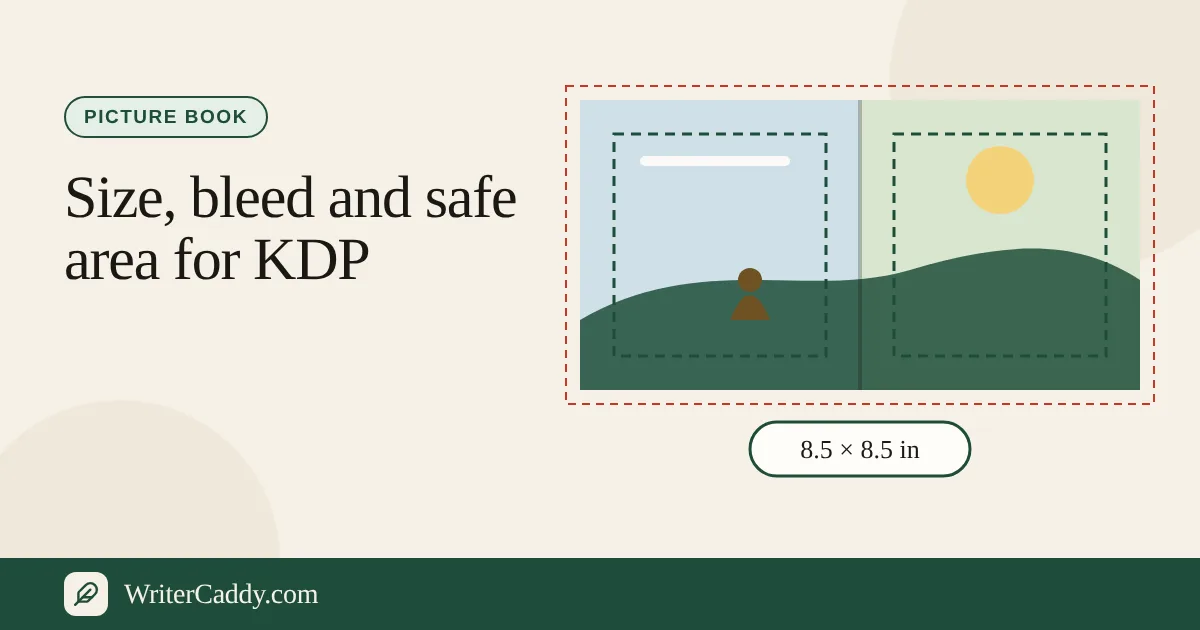
The desk keeps the print advice in view: art at 300 dots per inch, 0.125 in of bleed past the trim, and faces and words about 0.375 in from the gutter. Picture books fold in eights, so a printed edition usually lands at 24, 32, 40 or 48 story pages. None of that limits the video, which simply plays the pages you have.
Choose who reads it
The Audio step offers two buttons: "AI reads it" and "I recorded it". With an AI reader you choose a style: Woman, Man, Older, Young, Adult, Child, Cartoon, Energetic or Calm. Child and Calm suit bedtime; Cartoon suits a comic with a lot of shouting. The "Pace the pages" tool suggests how long each page should hold, and "Apply these timings" puts those seconds on the pages. "Say the names" drafts how odd names should sound and can add them to How to say the names, which the voice reads from. You can also type a Hold (seconds) on any page yourself.
"I recorded it" lets you list one recording per page. "Join the page recordings" uploads those files and joins them, in page order, into one MP3, and "Clean or edit the voice" levels a take. The video studio itself renders only an AI reader. A book set to your own recordings is told: "This book uses your own recordings. Switch the reader to an AI voice to render it here."
Watch it, then render it
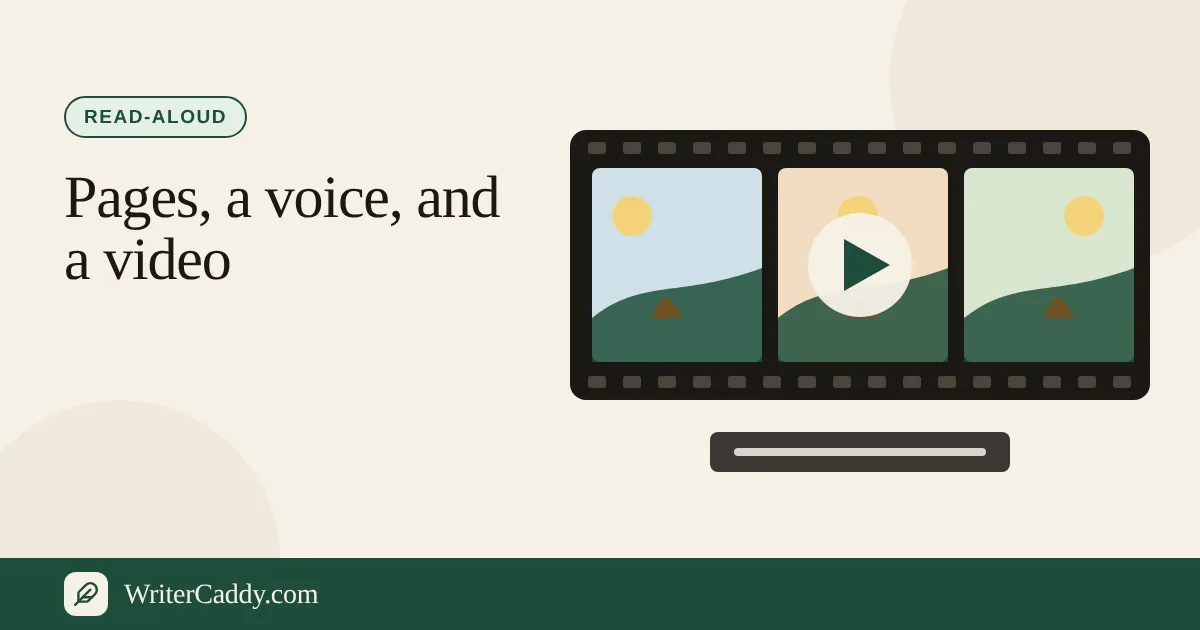
The Video step shows the book playing in the right-hand pane, page by page, with Play, Pause, Previous page and Next page. This preview uses your browser's voice, so it is a rehearsal, not the finished recording. The studio that makes the real video sits on the same step.
The File step has two outputs.
| Output | What it is | Cost |
|---|---|---|
| "Create the combined file" | A single HTML page with your pictures inside and a Play button that reads each line with the viewer's browser voice | Free, no sign-in |
| "Video and MP3, with a voice" | An MP4 at 1920 × 1080 with soft subtitles, and an MP3 of the same reading, made on the server | The AI plan |
In the rendered video, a title page comes first ("The Lantern Fox. Written by Priya Shah.") over your cover, or over the first page if there is no cover. Each page then holds as long as its line takes to read, plus a breath of quiet before and after the words. A page with a hold set stays up at least that many seconds. A page with a picture but no words waits two and a half seconds in silence, or its hold. Pictures that are not 16:9 sit on a cream background rather than being cropped, so nothing at the edge of a painting is lost.
Subtitles are soft: the viewer switches them on in the player. On a comic each subtitle reads "Speaker: line", so a class can follow who is talking.
Cost, timing and what to check
A render uses minutes from the AI plan's 5 monthly hours, and a picture book usually needs only a few of them. The minutes are counted when the render starts and given back if it does not finish. One render runs at a time per account, and the files stay downloadable for 7 days. The free narrator on WriterCaddy's server reads English only. The plans are listed on the pricing page.
Before you press the button, check these:
- Every page has a line. An empty page holds its picture for a quiet pause, which is fine once and odd five times running.
- The order. The video follows the Pages list exactly. Fix it there, not afterwards.
- The book is saved. The studio asks you to save first; signed in, the desk saves on its own after each change.
- Names. The "Say the names" tool on Audio only drafts how a name should sound; this path has no pronunciation field for the render to read. Listen with "Listen to the pages", and if a name comes out wrong, respell it in the line itself.
- Long lines. A page holds as long as its words take. Split a paragraph across two pages if a child would stare at one picture too long.
Where to go next
Open the WriterDesk and walk the sample to see the path; the studio will not render the sample itself, so start your own book with two or three pages and render that once to see the timing before you upload all your art. If the same story will also become a narrated audiobook for older readers, the audiobook guide explains the chapter-by-chapter path, and the guide to the AI caddy explains what the drafting tools will and will not do for a story like yours.
Which page of your picture book do you most want to see hold on the screen? Write to us at [email protected].
Try it on your own book
The sample books on the desk show every step before you start one of your own.