Getting started
Proofread by Ear: Hear Each Chapter Before a Reader Does
Your browser reads the chapter aloud, sentence by sentence, so the repeated word and the sentence that runs out of breath stand out
WriterCaddy Team · October 17, 2026 · updated October 21, 2026 · 5 min read
Elena has read chapter seven of her family saga so many times that her eyes slide over it. She knows something is wrong in the scene at the train station, but every silent read tells her it is fine. Her old writing teacher's advice was simple: read it out loud. At eleven at night, with a sleeping house, that is not going to happen.
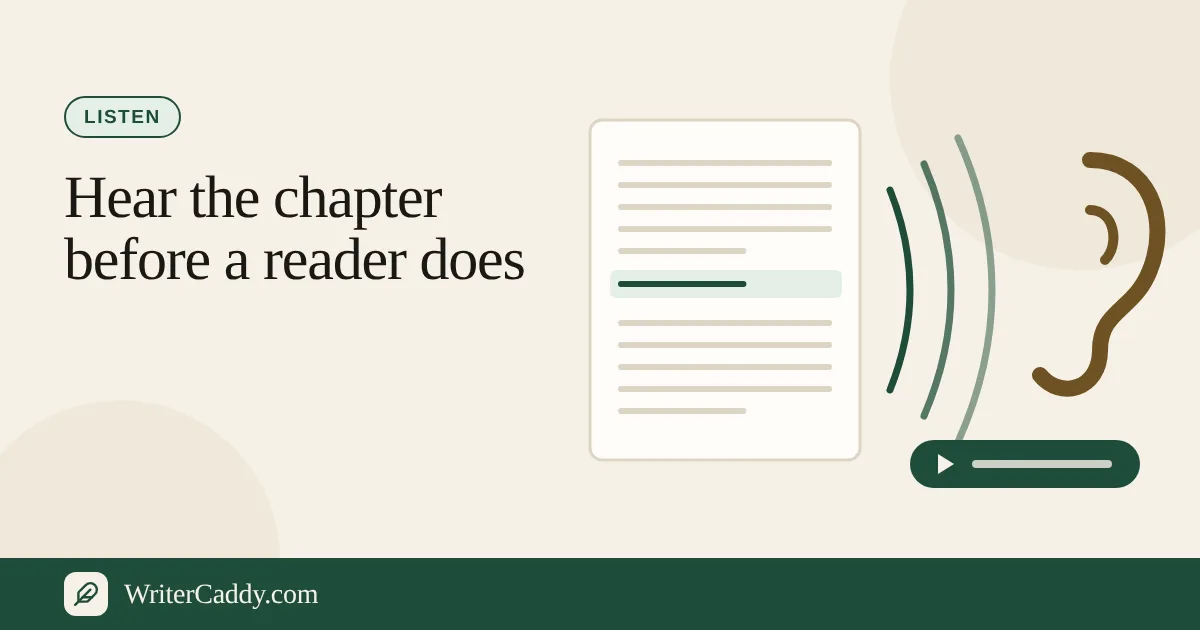
The WriterDesk has a way around it. Under every chapter there is a "Listen to this chapter" button that reads the chapter aloud in your own browser, one sentence at a time, showing the sentence as it is spoken. It costs nothing, needs no sign-in and saves nothing. Put on headphones, press it, and let your ear find what your eyes have stopped seeing.
Why hearing catches what reading misses
When you read your own prose silently, your mind supplies the rhythm you intended. A voice reading it cold does not. It stumbles where the sentence stumbles, runs out of breath where a clause runs long, and says the same word three times exactly as often as you wrote it.
Three problems jump out by ear more than by eye: echoes, where a word returns too soon; runs, where five sentences in a row share a shape; and hidden ambiguity, where a pronoun could point at two people. You will hear all three in the first few minutes of a scene you thought was finished.
Where the button is and what it does
On the regular desk path the button sits under the chapter editor on the Chapters step, after the line of chapter statistics. On a picture book or comic it appears on the Pages step as "Listen to the pages", and on a comic each page is introduced by the speaker's name.
- Voice. A menu of the voices your device has, shown as name and language.
- Speed. 0.75×, 0.9×, 1×, 1.15×, 1.3× or 1.5×.
- Pause, Resume and Stop. Pause holds your place at the current sentence; Resume starts from it.
- The live line. The sentence being spoken appears under the controls, so you can find it in the editor.
The chapter title is read first, then the prose, sentence by sentence. Your choice of voice and speed is remembered in this browser only.
A revision routine that takes twenty minutes
- Open the chapter on Chapters and read the statistics line under the editor.
- Note the word count, the line "Reading ease sits near grade 7" (it appears after about 40 words), and the words listed after "Often:".
- Press "Listen to this chapter" at 1× and listen once without touching anything.
- Each time you wince, press "Pause" and note the sentence shown on screen.
- Fix those sentences in the editor while the problem is fresh.
- Listen again at 1.15× or 1.3×. Faster playback makes slack sentences obvious.
- Check the "Often:" list again. If a word you cut is gone, the echo is gone.
The "Often:" list counts words of four letters or more that appear at least four times, leaving out common little words, and shows up to three. In Elena's station scene it showed "platform (6), suddenly (4)", which was exactly what her ear had flagged.
If you have started a book of your own, two AI tools on the same step pair well with this routine. "Format the chapter" names lines with grammar, tone or length problems and offers shorter wording only for those lines. "Keep the thread" lists what a reader might lose track of between chapters. Neither writes into the book; the AI caddy guide explains how they work.
Listening to dialogue and to picture-book lines
Dialogue gains the most from a listen. A single neutral voice reading every character makes one thing plain: whether the reader can tell who is speaking without the tags. If two characters blur together when spoken flat, they will blur on the page too, and a stronger verb or a habit of speech fixes it better than another "she said".
On a picture book the job is different. Each line will one day be read by a tired parent at bedtime, so listen for the words a grown-up would trip over and the line that runs longer than its picture deserves. Set the speed to 0.9× to hear it the way a child does.
Why the voice sounds different on another computer
The Listen button uses the speech built into your browser and operating system, the same approach as FreeDailyPro's text-to-speech tool. That is why it is free and instant, and also why it varies. A laptop, a phone and a work desktop will each offer a different set of voices, and some sound far more natural than others. Install extra voices in your system's language settings and they appear in the menu.
It is also why nothing can be downloaded. The browser speaks the text but does not hand the sound to the page. Downloadable narration is a separate tool: the studio on the Check step renders MP3 files with the book's narrator, levelled for audiobook shops. That path is described in the audiobook guide.
| Listen button | Audiobook studio | |
|---|---|---|
| Voice | Your device's voices | The book's narrator, on WriterCaddy's server |
| Cost | Free | The AI plan |
| Saved file | None | ZIP of MP3s, kept 7 days |
| Purpose | Proofreading by ear | Files for audiobook shops |
What to check if it does not behave
- No sound. Check the device volume and the tab's sound; some browsers mute new tabs.
- "This browser has no built-in voice" means the browser offers no speech engine. Try another browser on the same machine.
- A robotic voice. Pick a different entry in the Voice menu. Names with "Natural" or "Online" are often smoother.
- A word read strangely. That is the device's pronunciation, not your text. Keep the word if it is right on the page.
- Changing voice mid-chapter. Changing the voice or speed pauses playback; press Resume to carry on with the new setting.
Start with the chapter you trust least
Open the WriterDesk and try the button on the sample chapter "The mark on the gate" first, so you can pick a voice and speed you like before you turn it on your own pages. Then listen to the chapter you have reread the most; it is usually the one hiding the most.
What is the one word you suspect you use far too often? Write to us at [email protected].
Try it on your own book
The sample books on the desk show every step before you start one of your own.